If you forgot your CssHidex password, you can change it from a configuration file. This page will also explain how to remember your current username.
To change your password,
1 |
Open config/admin/config.emergency-login.inc.php in a text editor. Find the following line. |
$cfg["password"]="";
2 |
Type your new password in the double quotes. For example, if your new password is abc then the line will be like |
$cfg["password"]="abc";
3 |
Save the file. |
4 |
Open the login page ( admin/index.php ) in your browser. You will see the following message. |
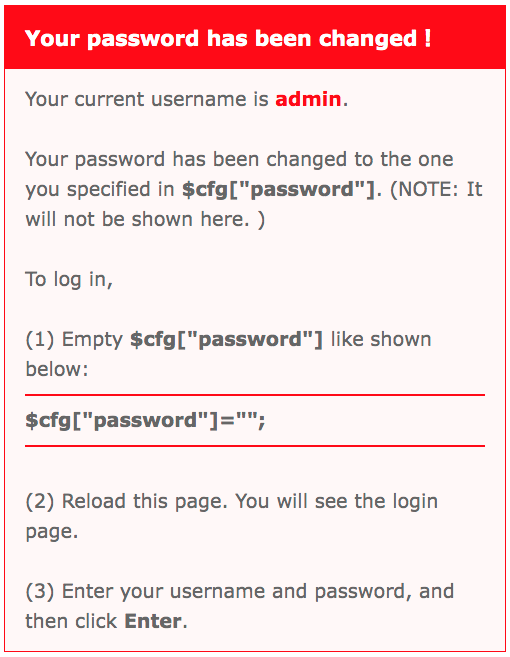
Your password has been changed
Your password has now been changed to the one that you typed in Step 2. You may also notice your current username is shown at the top.
5 |
Open config/admin/config.emergency-login.inc.php again and clear the password you typed before like shown below. |
$cfg["password"]="";
6 |
Save the file. |
7 |
Reload the login page ( admin/index.php ) in your browser. The CssHidex login page opens. Use your username and new password to log in to the admin panel. |